
View your 3D model in a browser with the Sentio Web Viewer
Upload an RVT, NWD, IFC, SKP or other 3D file and open it in any browser. Covers uploading, sharing the access code, navigating, measuring, reading element properties and tuning performance.
1. Upload your model
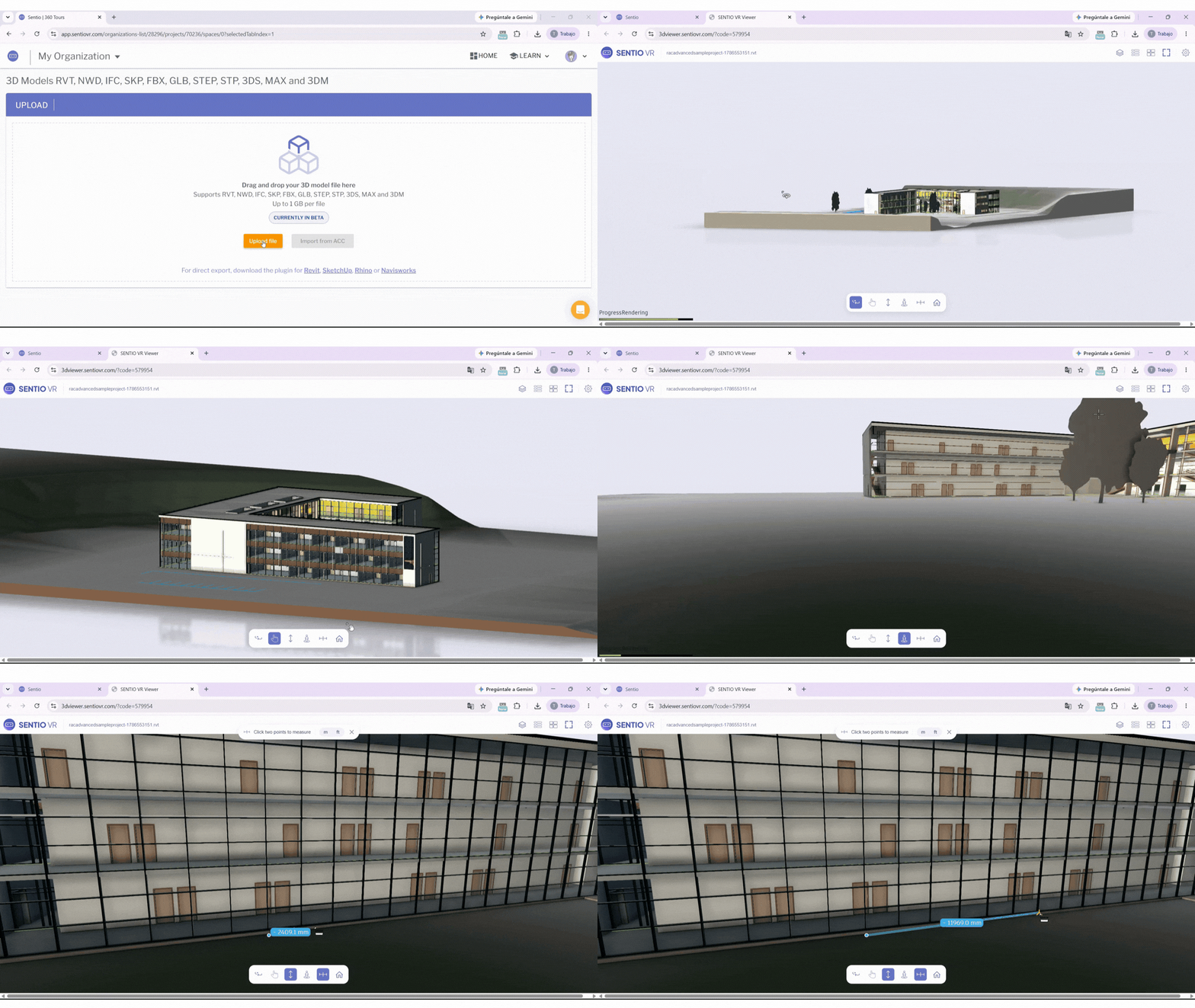
Open your project, go to the 3D Walkthroughs tab and click Upload new model. Drag your file into the upload area, or click Upload file to browse.
To pull a model straight from Autodesk Construction Cloud, use Import from ACC instead.
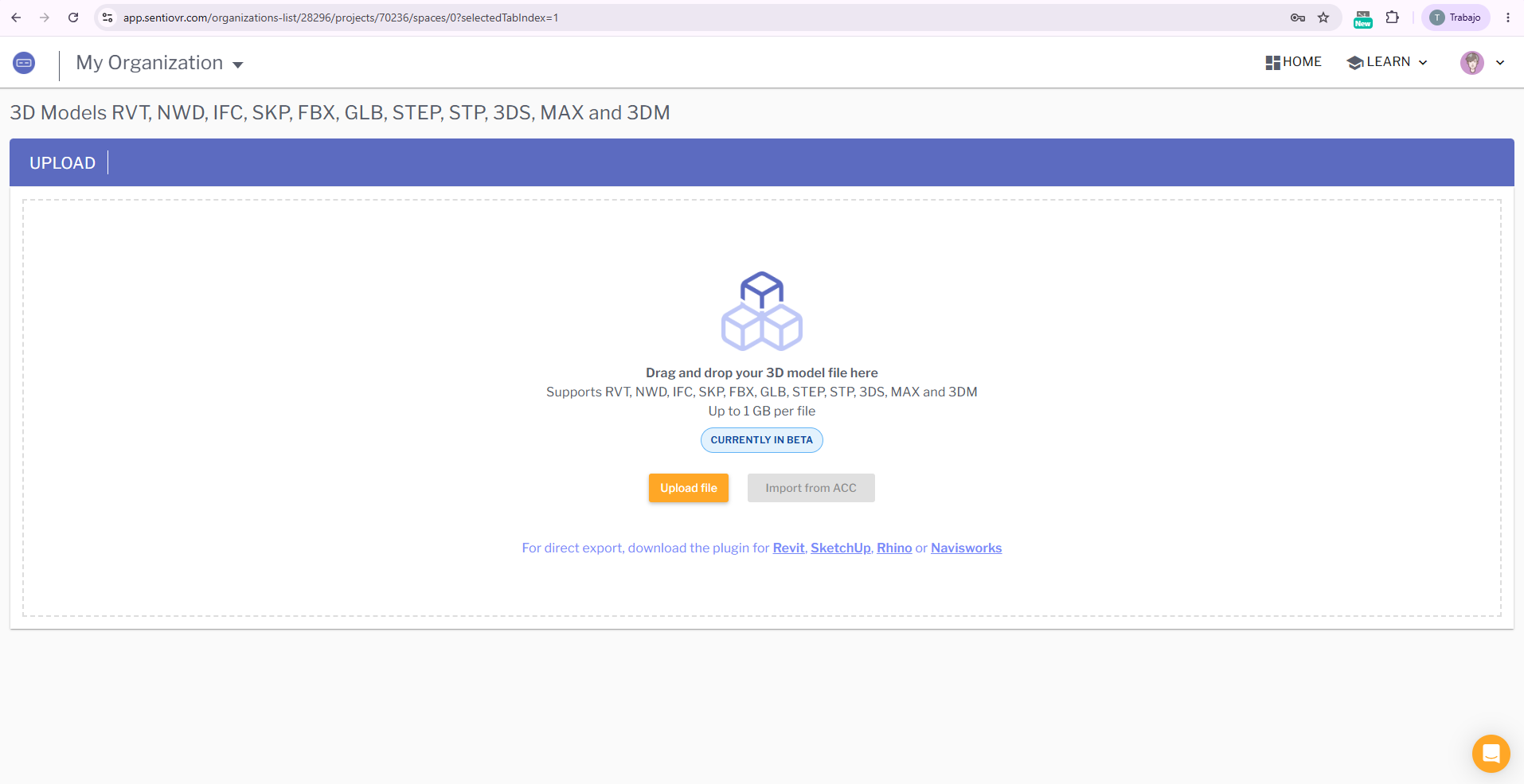
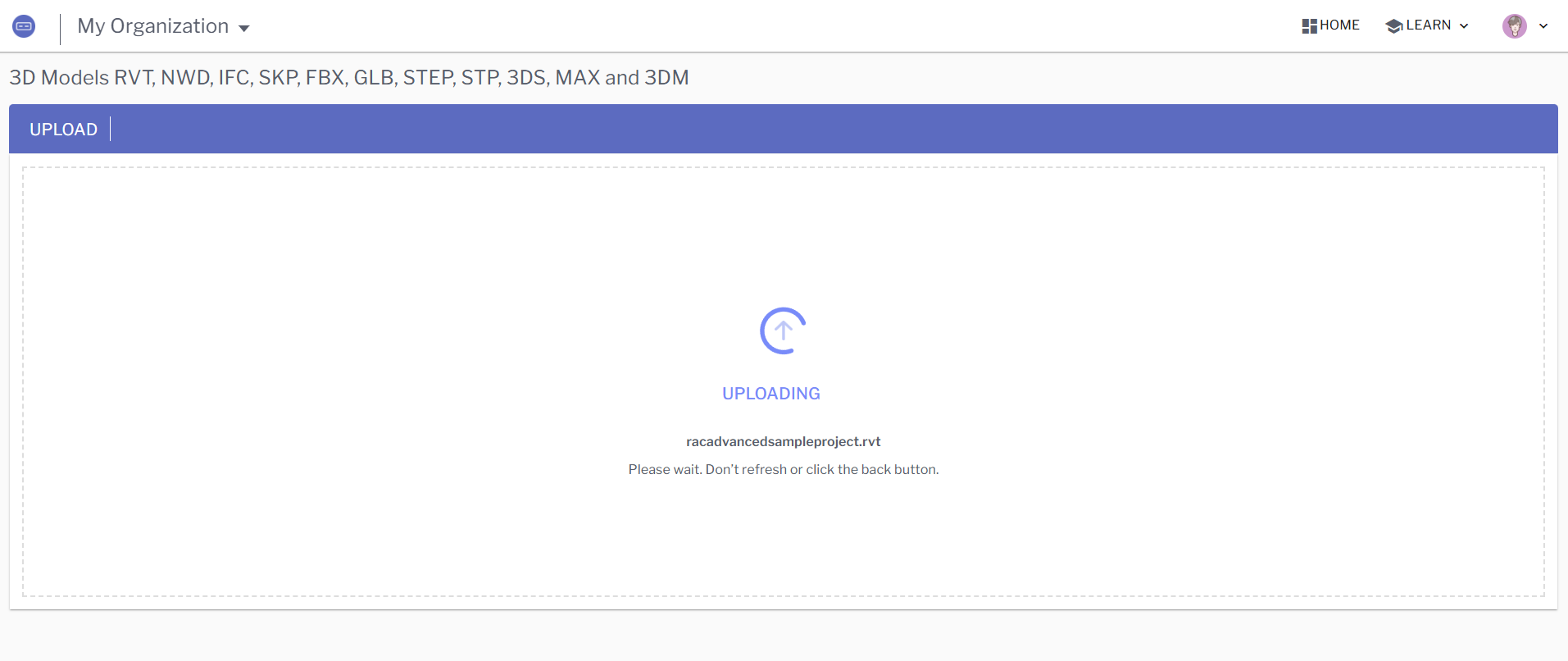
While the file uploads, keep the tab open. Refreshing the page or clicking the back button cancels the upload.
| Supported formats | RVT, NWD, IFC, SKP, FBX, GLB, STEP, STP, 3DS, MAX, 3DM |
| Maximum file size | 1 GB per file |
| Where models live | Projects → your project → 3D Walkthroughs |
3D model upload is currently in BetaYou will see the CURRENTLY IN BETA label on the upload screen. Supported formats and behaviour may change.
2. Wait for processing
Once the upload finishes, Sentio converts the model. At this point you can close the window processing runs on our servers, and you will get an email when the model is ready.
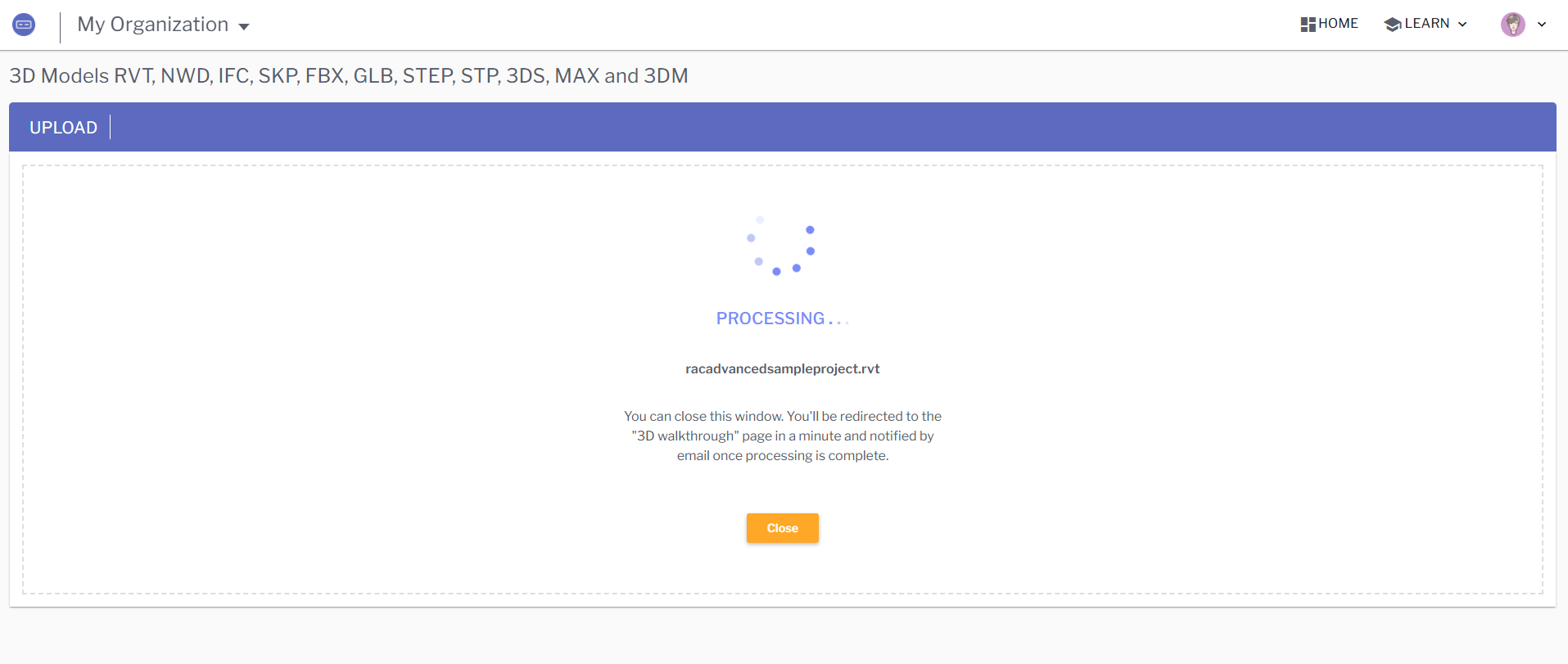
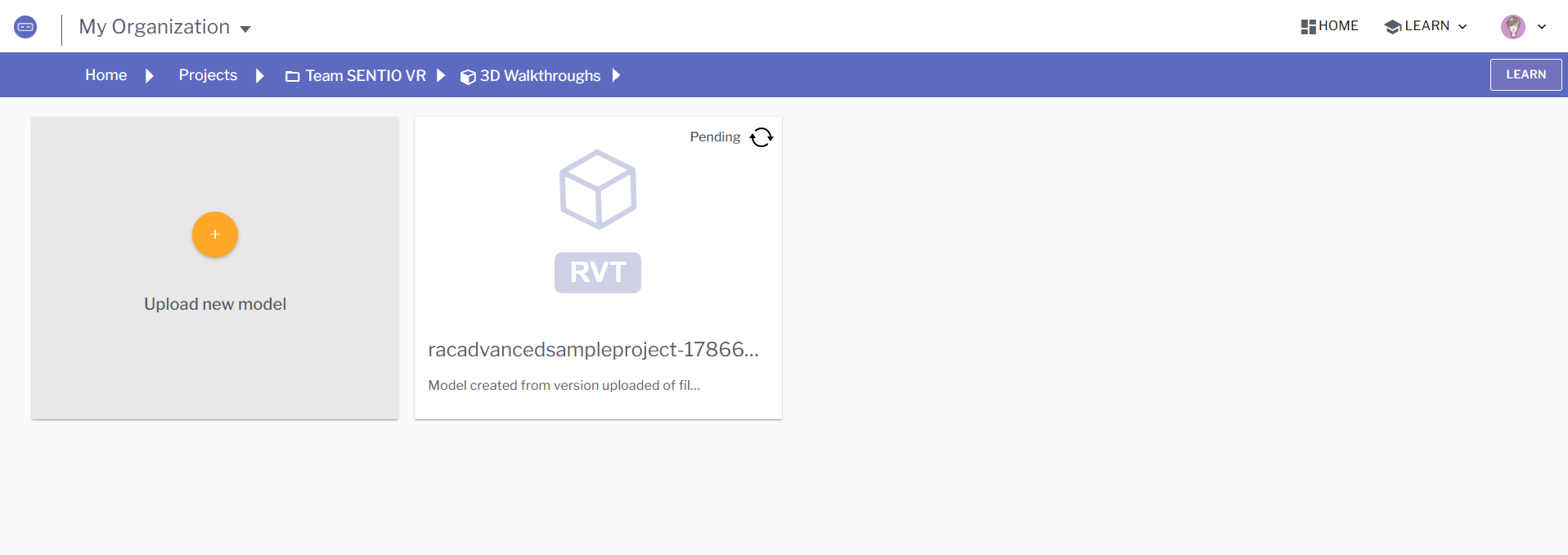
Your model appears in the 3D Walkthroughs list marked Pending while it converts. Use the refresh icon on the card to update its status.
3. Open it in your browser
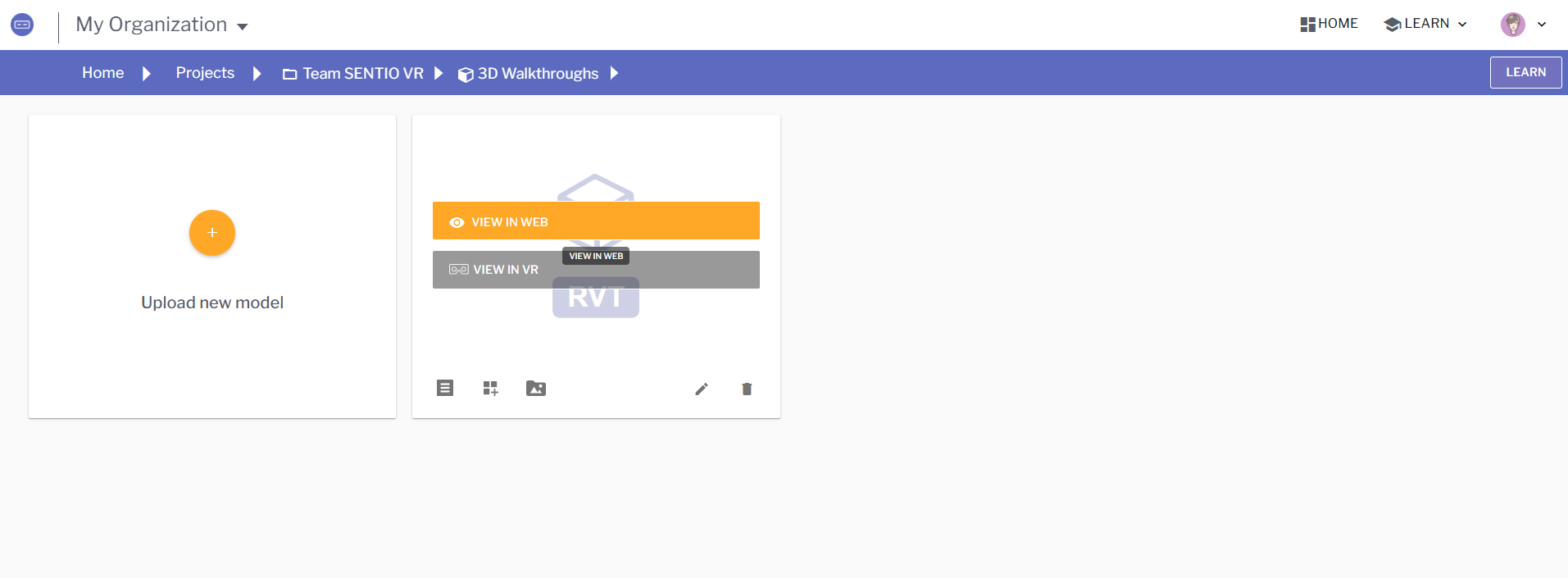
Hover over the model card and click VIEW IN WEB. The neighbouring VIEW IN VR button shows the 6-digit access code for opening the same model on Meta Quest.
4. Share it
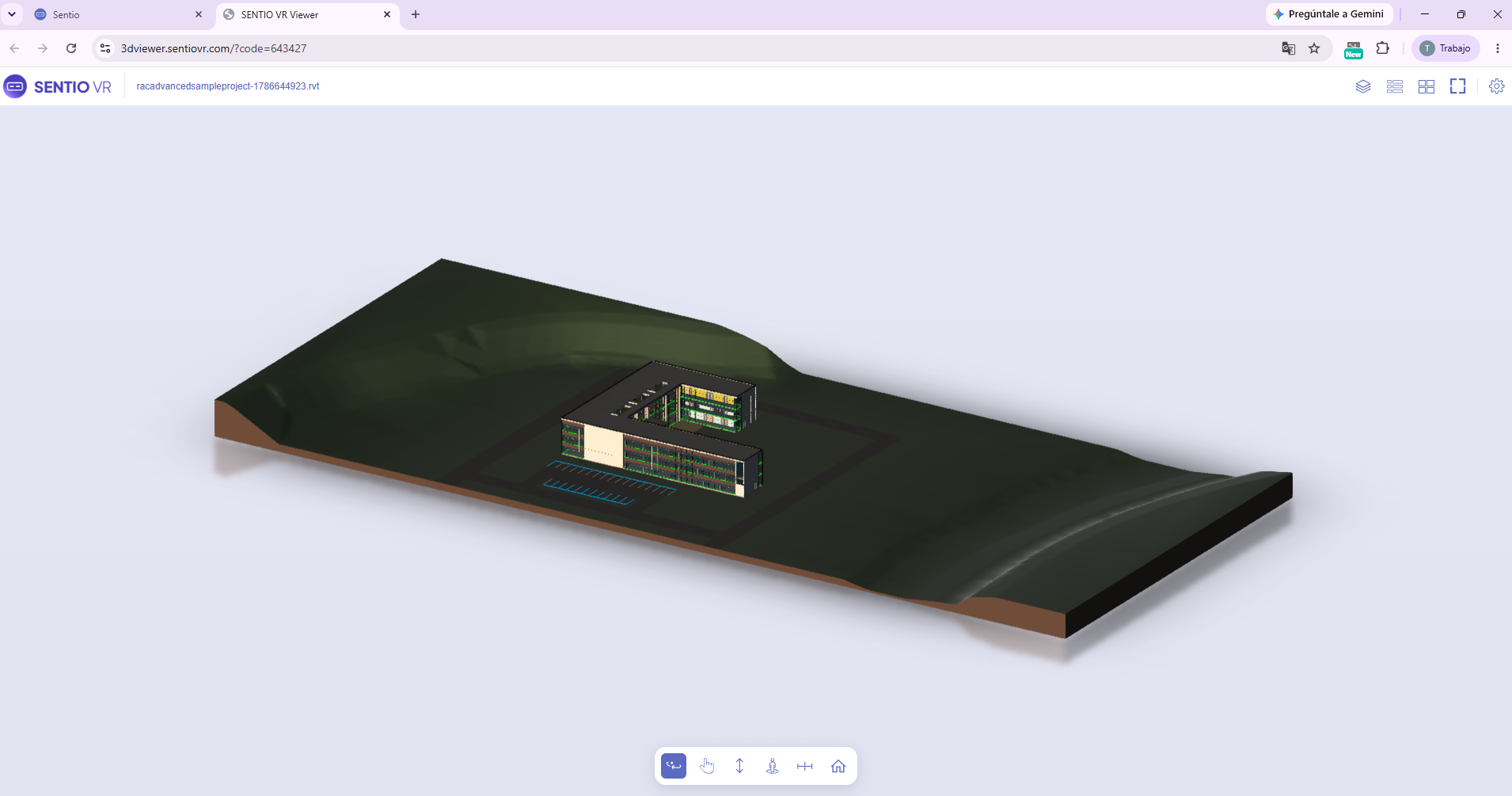
The viewer opens in a new tab. Copy the URL from your browser's address bar and send it to whoever needs to review the design. The access code is part of the URL, so the link is all they need.
Navigating the model
The toolbar at the bottom of the viewer controls how you move.
| Tool | What it does |
|---|---|
| Orbit | Rotate the camera around the model. This is the default. |
| Pan | Slide the view without rotating. |
| Zoom | Scroll to move closer or further from the model. |
| First Person | Drop to eye level and walk through the building. |
| Measure | Measure the distance between two points. |
| Home | Return to the original view of the whole model. |
Walking through at eye level
Select First Person to review a room, a corridor or a sightline from a person's point of view. A controls panel appears the first time you enter this mode.
| Action | Control |
|---|---|
| Walk | Arrow keys, or W A S D |
| Go up and down | Q and E release to land on the nearest floor |
| Run | Shift + direction key |
| Teleport | Double-click on your destination |
| Look around | Click and drag with the left mouse button |
| Adjust speed | − and + |
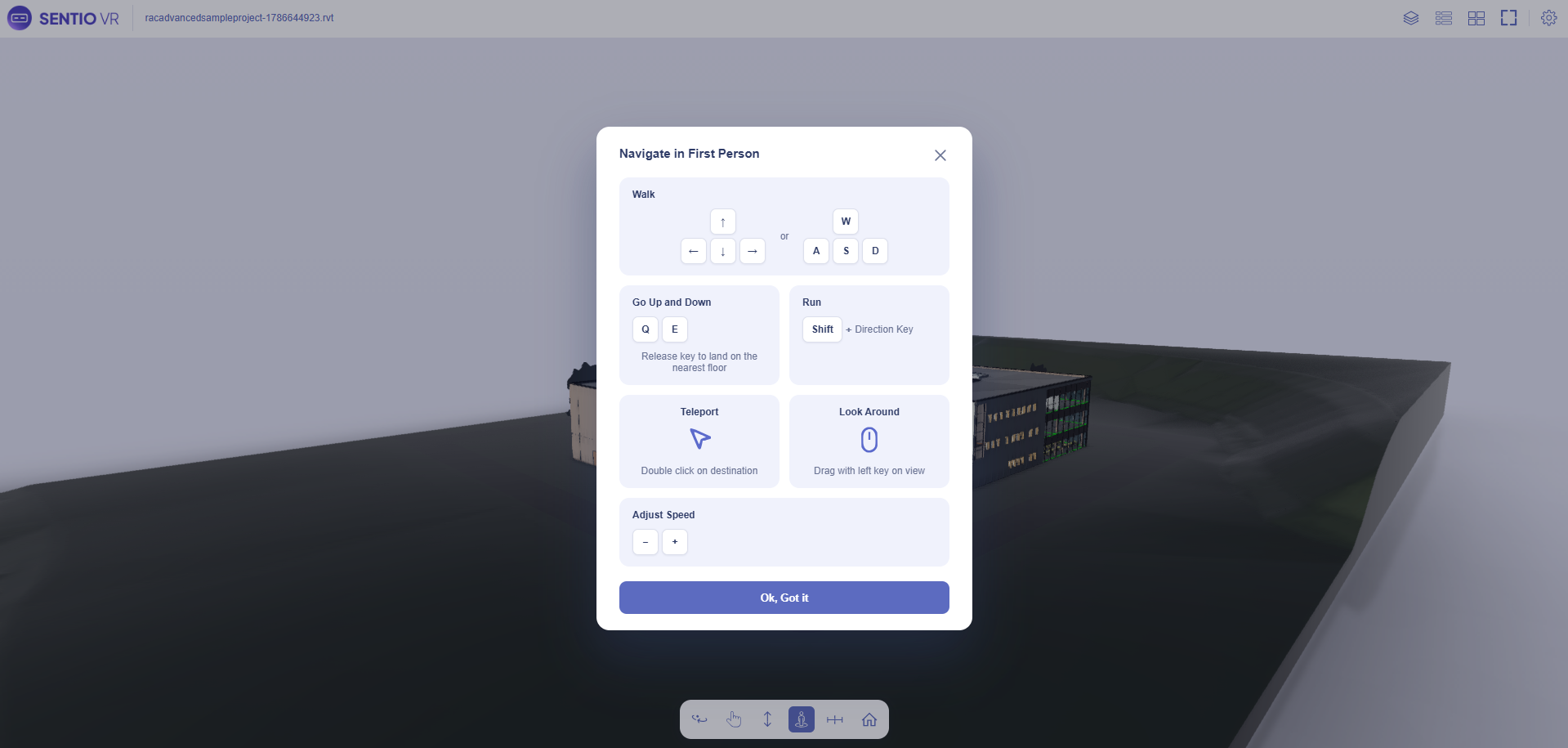
Teleport is the fastest way to cross a large modelInstead of walking the whole distance, double-click on a far point and you land there.
Measuring a distance
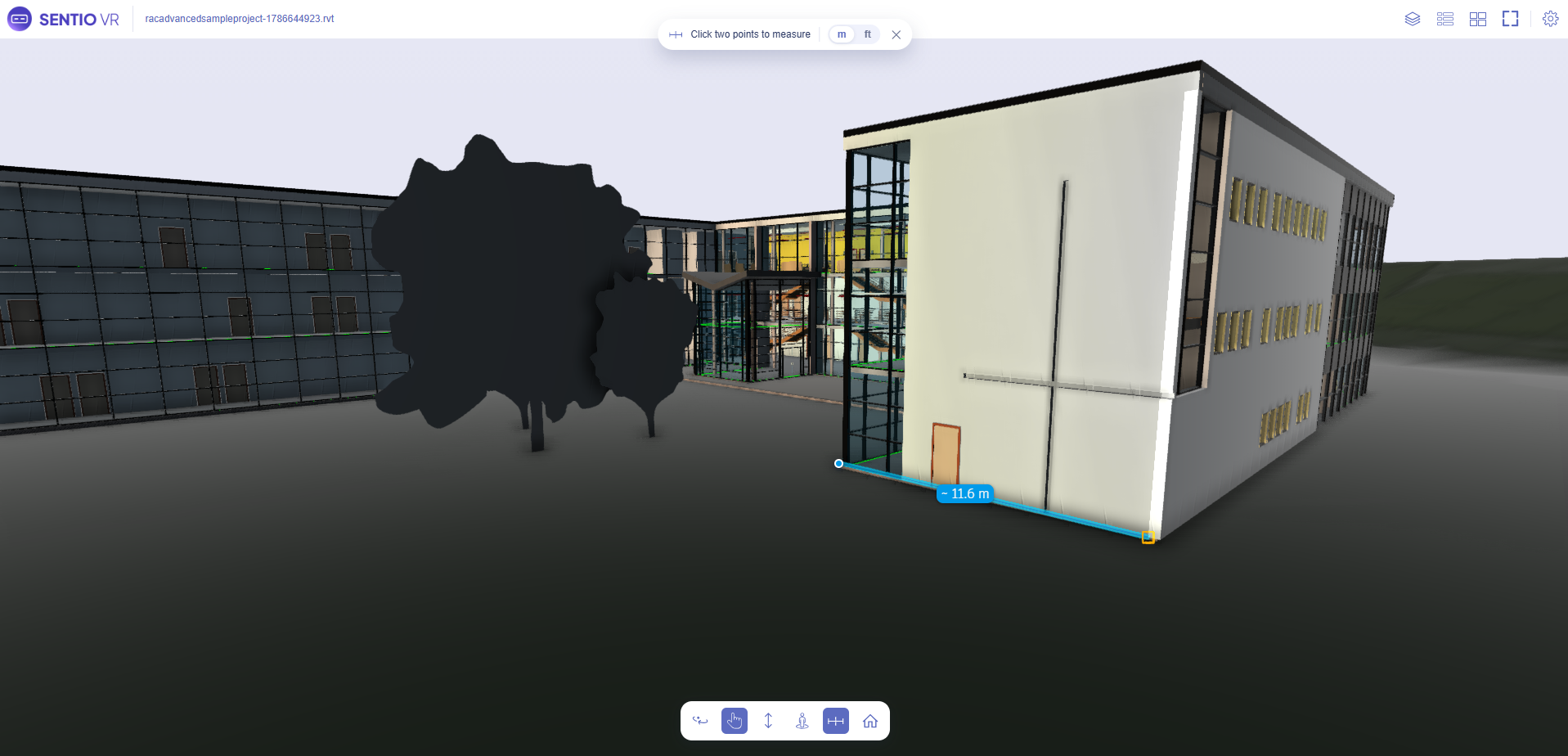
Click Measure, then click two points in the model. The distance appears on the measurement line. Switch the result between m and ft with the toggle in the top bar, and click × to exit.
Panels and settings
The icons at the top right open the viewer's side panels.
-
Layers lets you show and hide parts of the model, so you can isolate what you need to review.
-
Properties shows the metadata carried in the model for a Revit file, Category, Building Name, Author, project GUIDs, Project Status and Client Name.
-
Full Screen hides the browser interface so the model fills the display.
-
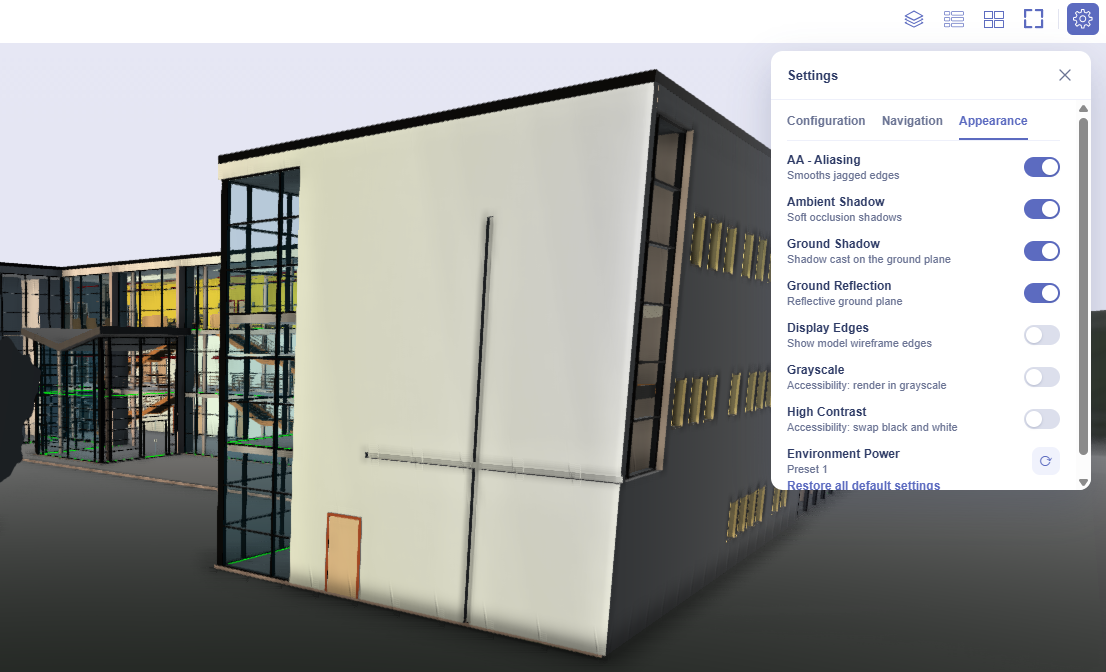
Settings holds three options that trade visual quality for speed the first thing to try if the model runs slowly.
Restore all default settings reverts any changes.
Prefer video? The whole workflow is covered in 2 minutes watch the walkthrough.
Troubleshooting
- The link does not load. If your organisation restricts outbound traffic, ask IT to allow
3dviewer.sentiovr.comsee Whitelisting IPs for using SENTIO VR applications. - The model is still marked Pending. Processing has not finished. Click the refresh icon on the card; you will also get an email when it completes.
- The upload failed. Check the file is under 1 GB and in a supported format. Refreshing or going back during upload cancels it.
- The model runs slowly. Review on a laptop rather than a phone, close other browser tabs, and check the Settings options above.
- Textures are missing. Usually a texture path issue in the source file see Fix Missing Textures in SketchUp Models.
Related
Updated 3 months ago